

.svg)

MAPEGY MCP Server
The MAPEGY MCP Server is a standards-based gateway that exposes MAPEGY’s innovation intelligence as MCP tools. Instead of learning specific endpoints, any MCP-compatible AI client can point to a single server URL, authenticate once, and start using the MAPEGY APIs you have access to from within the assistant.
The MCP server wraps MAPEGY APIs endpoints and shows them as discoverable tools with clear inputs and outputs. Your AI client can auto-discover available tools, their parameters, and return schemas.
It gives you direct programmatic access to the full power of MAPEGY’s InnovationGraph. With it, you can perform advanced searches across News, Research, Patents, Companies, Startups, Standards, Projects, Forecasts, Trends, and much more, using structured lexical queries or autosuggested semantic topics.
The MAPEGY MCP Server allows you to retrieve documents, analyze temporal trends, break down scientific and patent activity by month/quarter/year, pull KPIs, and instantly generate SCOUT Panels for interactive data exploration.
All of this can be done from within your own applications, scripts, dashboards, or AI agents like ChatGPT.
This reduces integration time and helps teams keep consistency across environments.
Test and access MAPEGY API content from MCP clients
Use the MCP server to explore and test MAPEGY API content directly inside other MCP-enabled assistants.
This is also helpful for quick validation of queries, filters, and outputs before building full integrations.
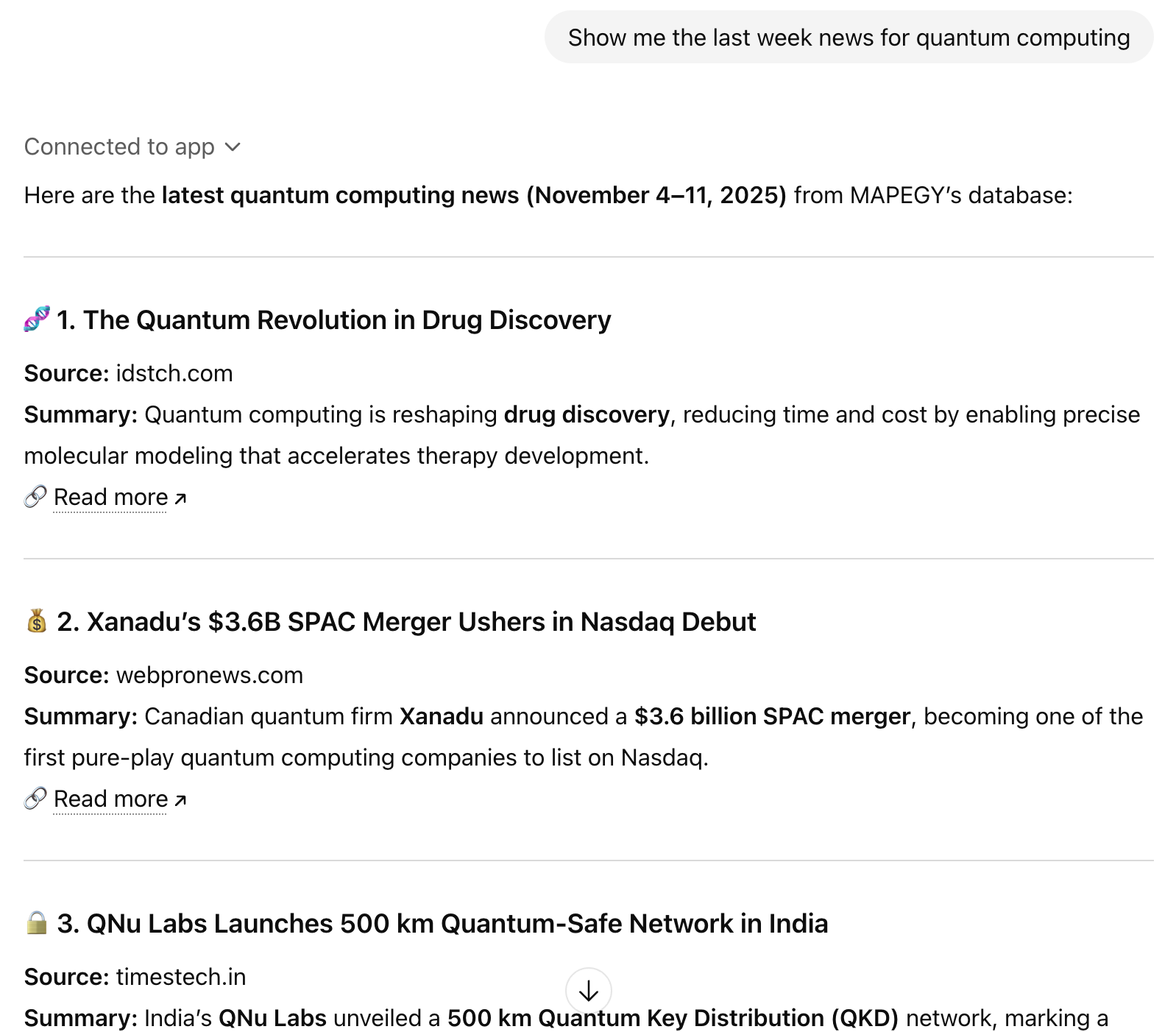
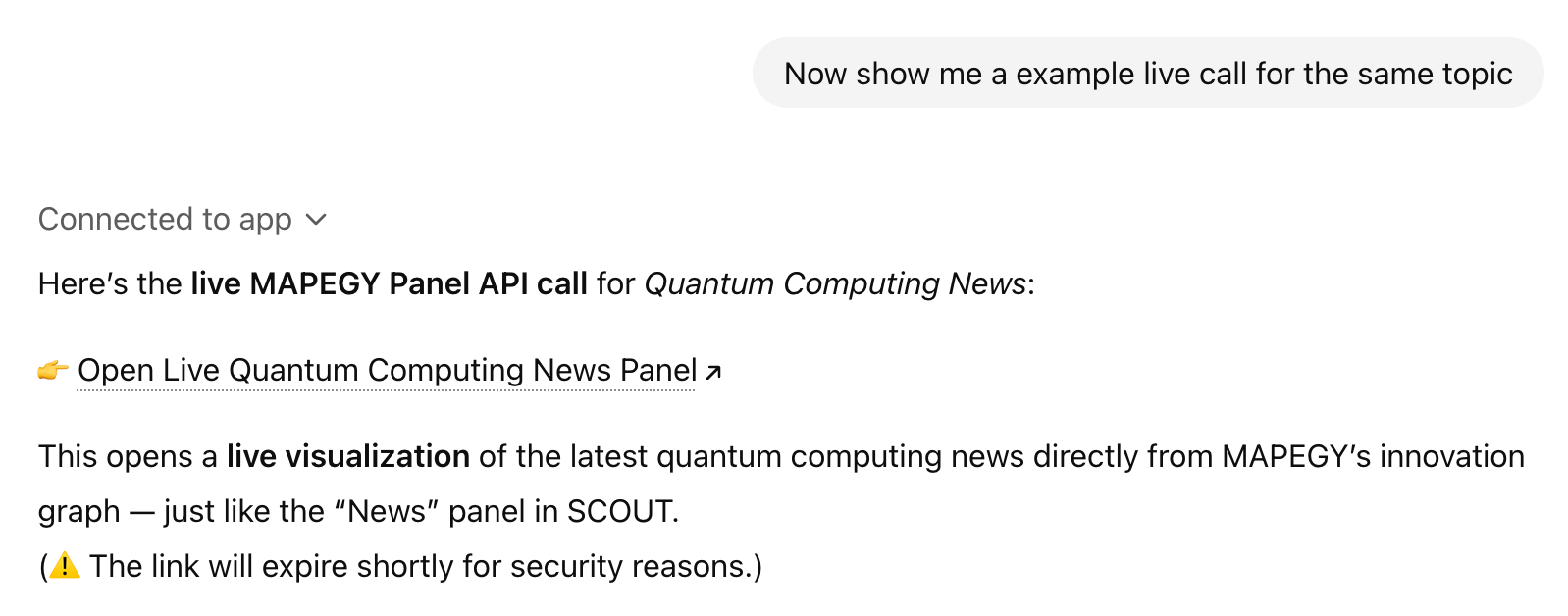
How to connect an MCP server to an MCP client
To connect the MCP server to any MCP client, you’ll need to use your API credentials. These credentials authenticate your connection and grant access to all MAPEGY API services that are enabled for your account.
- Go to the Demo page and authenticate with your credentials.
- There you will find the MCP Server URL you need: https://api.mapegy.com/mcp
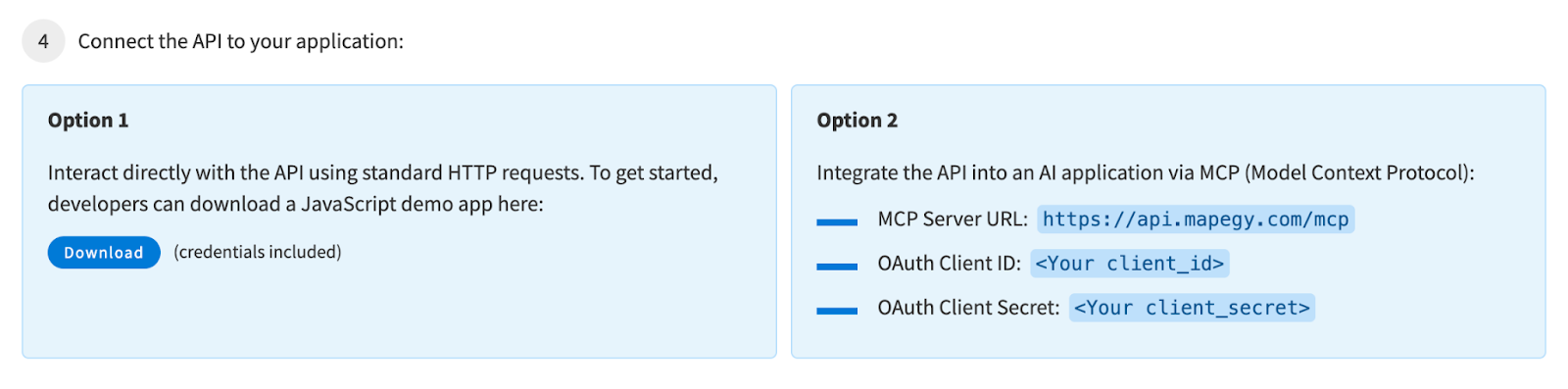
Check out the examples below for connecting common MCP-enabled clients. If you use any other MCP client, please let us know so we can verify compatibility and provide the correct setup steps for your environment.
Some MAPEGY functions, such asassistantanddocuments_analyze,are long-running operations that perform complex data retrieval and analysis. These execution times may exceed the default execution timeouts set by standard MCP clients. However, as long as you have control over your MCP client’s tool call timeout settings and adjust them accordingly, these functions can be used normally without issue.
Copilot Studio
Follow the steps in this article.
These are the required fields in the MCP onboarding wizard.
Server URL: https://api.mapegy.com/mcp
OAuth 2.0: Manual
Client ID: <client_id>
Client secret: <client_secret>
Authorization URL: https://api.mapegy.com/mcp/auth/authorize
Token URL template: https://api.mapegy.com/mcp/auth/token
Refresh URL: https://api.mapegy.com/mcp/auth/token
ChatGPT
As of November 2025, this is a BETA functionality available for ChatGPT Business accounts.
If you’re using ChatGPT as your MCP client, follow these steps to connect your MAPEGY MCP server:
- In your ChatGPT account, go to Settings → Apps & Connectors.

- Go to Advanced settings and temporarily activate Developer Mode to enable custom connections.
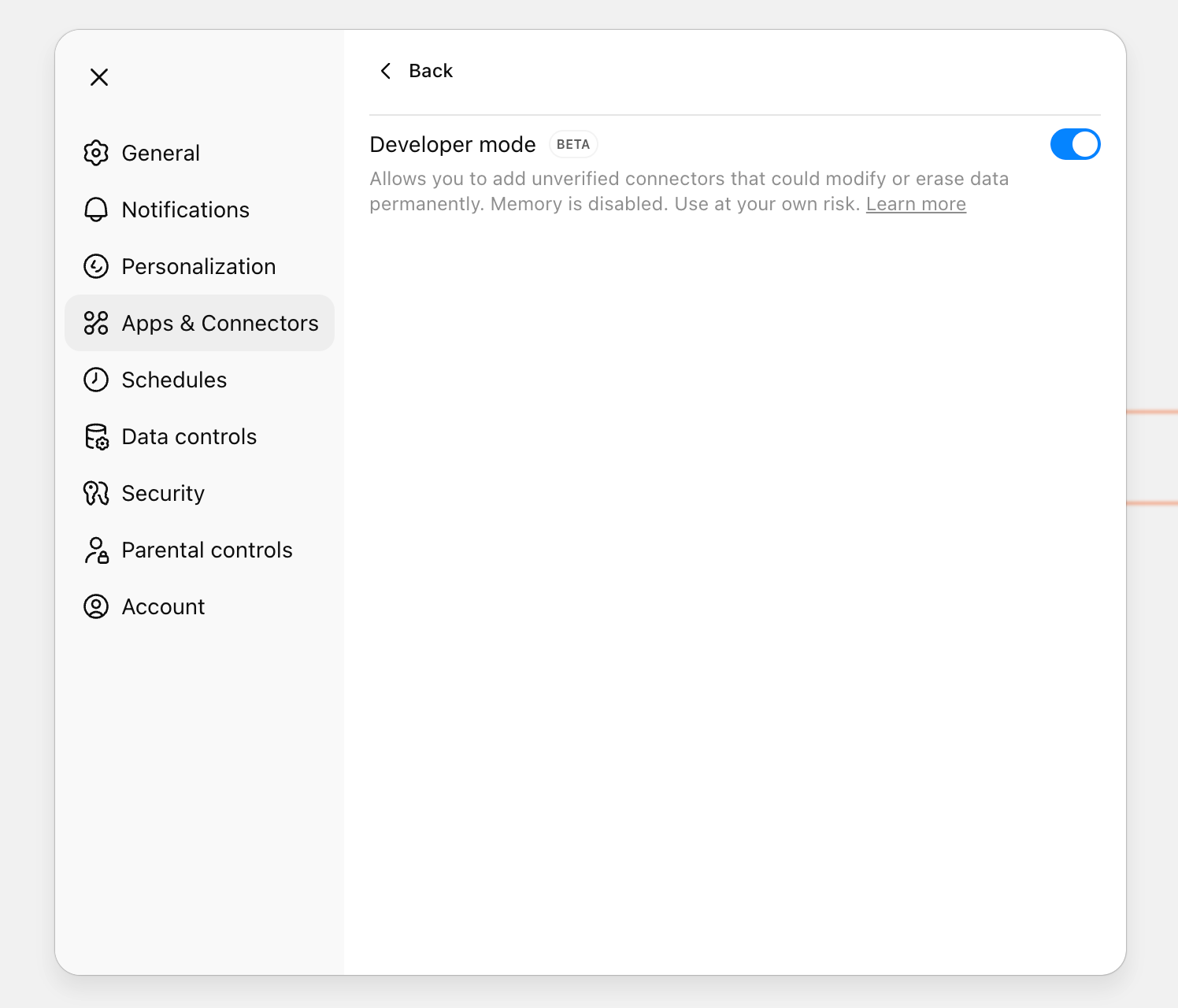
- Go back to the Apps & Connectors dialogue and click on Create.
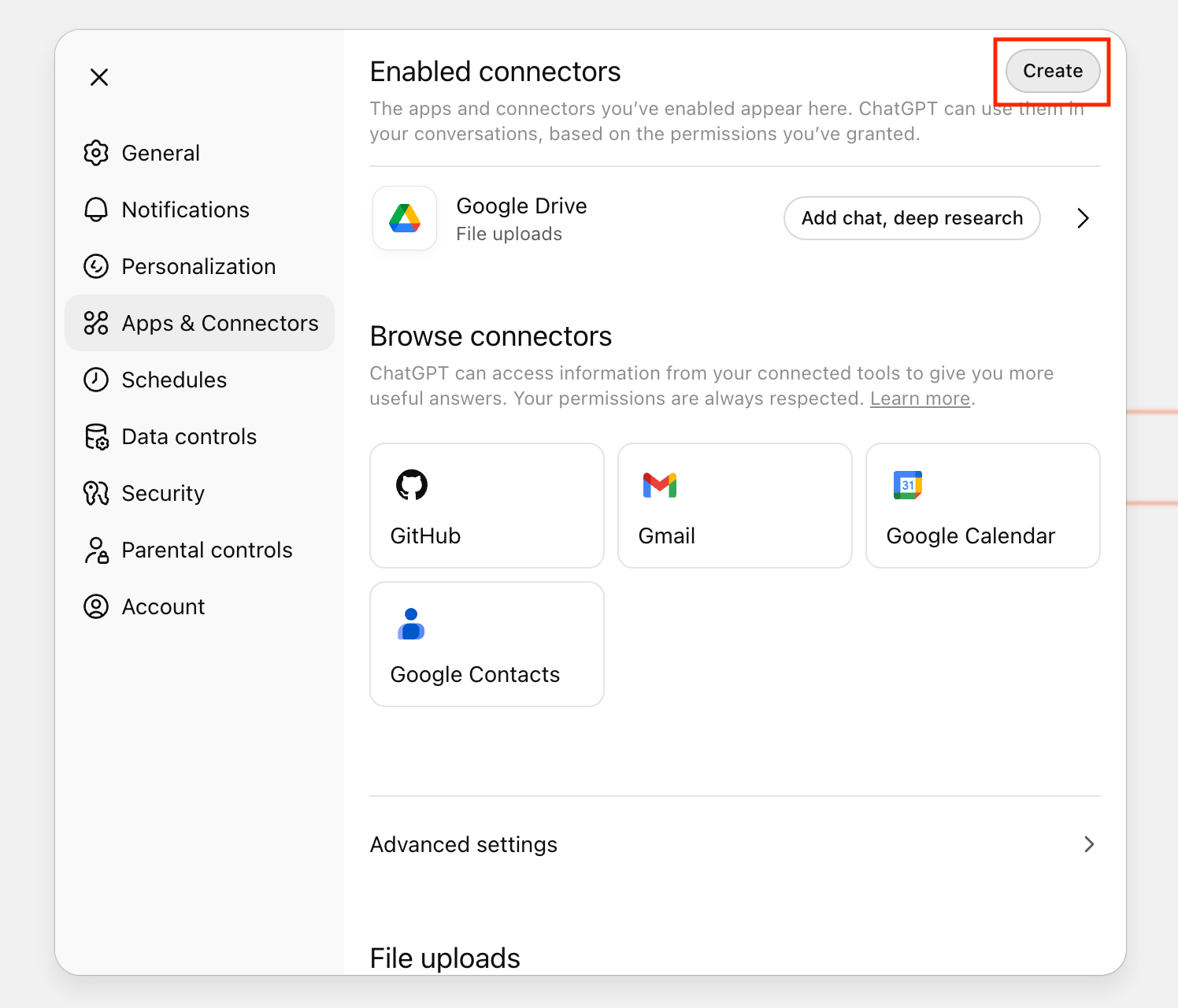
- Enter the MCP Server URL, Client ID, and Client Secret you received from MAPEGY.

- Once the connection is added, deactivate Developer Mode again.
- Reopen the Settings dialog, locate the newly created app, and click Connect to make it available within your organization.
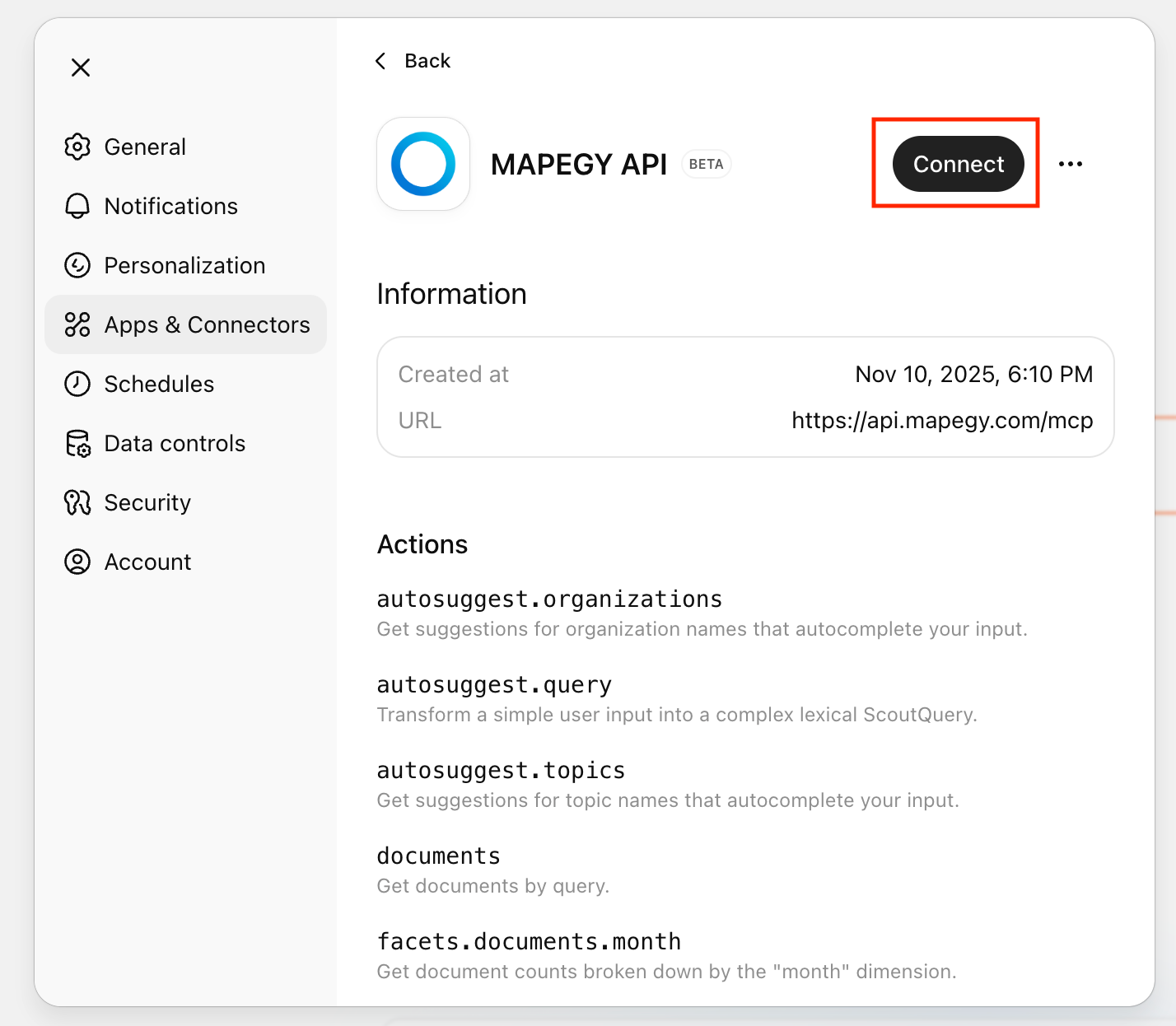
- After publishing, all users in your organization will see and be able to use the app directly under Apps & Connectors.
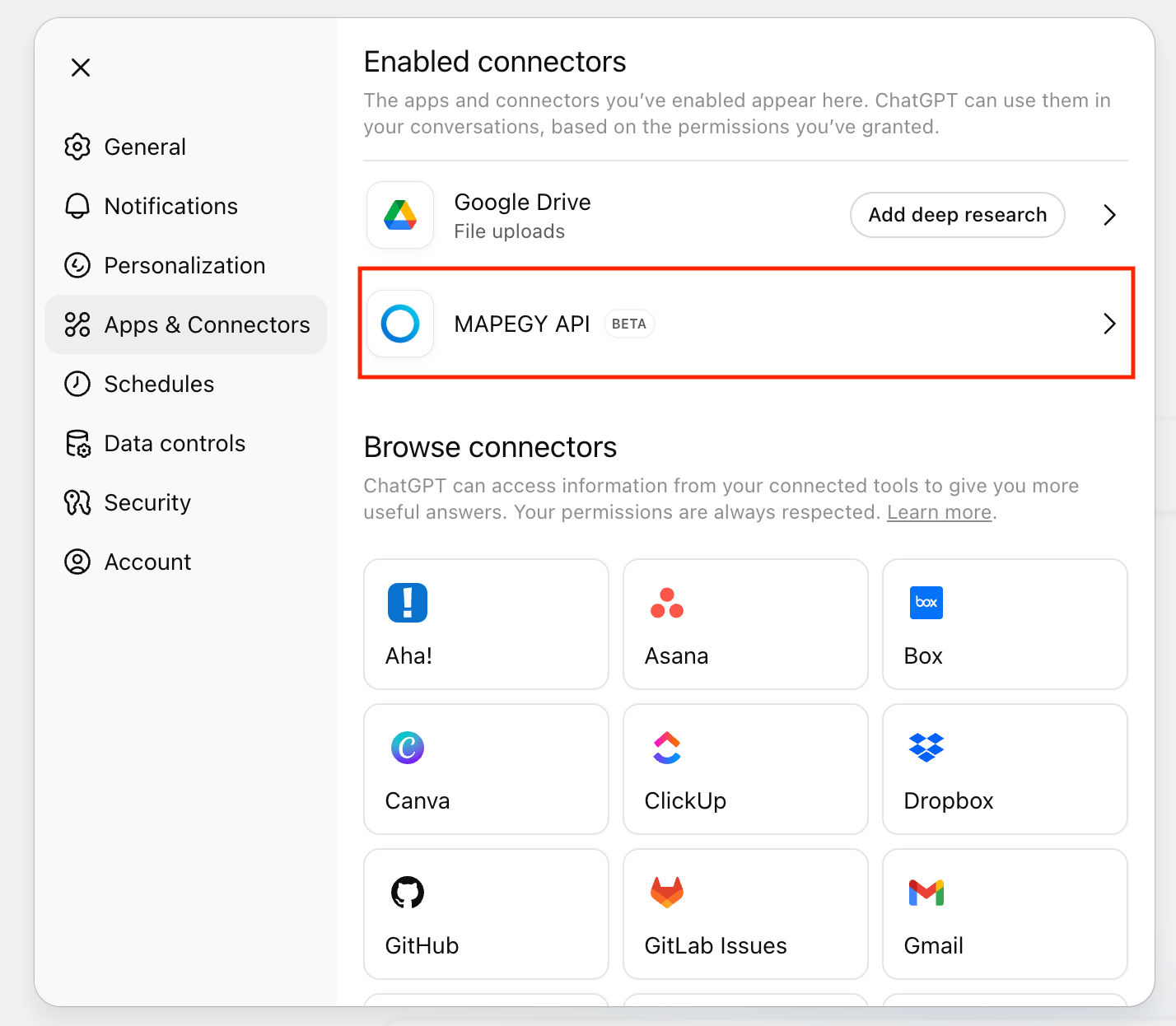
- Start using it by enabling it in your conversation — click the “+” icon inside the chat to add and activate the connector.

OpenAI Responses API
The OpenAI Responses API doesn’t integrate MCP as seamlessly as ChatGPT. A developer must implement a mechanism that retrieves a token from MAPEGY APIs and this access token can be sent to the Responses API to temporarily grant access as explained here.